Contact Us

If you still have questions or prefer to get help directly from an agent, please submit a request.
We’ll get back to you as soon as possible.

Please fill out the contact form below and we will reply as soon as possible.

  • Contact Us
  • Home
  • FAQ
  • Picaboo User Manual

Save, Save As, and Rename

Written by Nicole Lipnitz

Updated at January 13th, 2026

Contact Us

If you still have questions or prefer to get help directly from an agent, please submit a request.
We’ll get back to you as soon as possible.

Please fill out the contact form below and we will reply as soon as possible.

  • FAQ
    Picaboo User Manual Project Creation Picaboo Yearbooks Customer Feedback and Suggestions Promotions My Account Tips and Tricks Ordering Technical Support
  • Tips and tricks
  • PRICING
  • Shipping
  • Support
    SHIPPING AN EXISTING ORDER PRICING SEND FEEDBACK TO PICABOO TECHNICAL SUPPORT ORDERING A PROJECT CREATING A PROJECT PROMOTIONS/VOUCHERS
+ More

We include an automatic Save feature in Picaboo. This will ensure that your project is Saving after each change in your book, so you won't have to worry about losing any work in the event that your computer crashes or loses power.

If you're not signed into an account when you start your project, you'll see a prompt in the upper right prompting you to sign in or create an account so your project can be saved.

If you are signed in and have been working on a project, you'll see the Saved notification in the upper right.

If you wish to Save a Copy of your project, either so you can make some changes to the new copy while also retaining a copy of the original, or so you can split the book into multiple volumes, you'll find this option in the upper left of the program window by clicking on the 3 vertical dots near the project name. You can also Rename the project here.

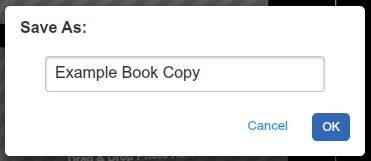
A dialog box will appear with the name of the project, followed by the word Copy. You can change the name of the new copy to whatever you wish, then hit OK.
If making a copy, from the Library, you'll now see both copies of the project on your shelf.


< Return to the Picaboo User Manual

preserve rebrand

Was this article helpful?

Yes
No
Give feedback about this article

Related Articles

  • How do I save a copy of a project so that I can edit it without losing the original?
  • If I'm in the middle of creating a book, can I come back and finish it later?
  • How do I sort my photos in a project?

Copyright 2026 – Picaboo.

Knowledge Base Software powered by Helpjuice

Expand